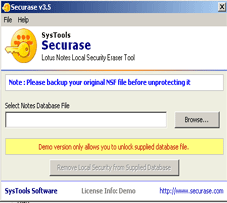
To install Securase - Lotus Notes Local Security Eraser into your computer system, perform the following steps:
- First make sure that the installation computer meets the entire system requirements and has sufficient memory available.
- Download the latest software setup of Securase .
- Double click the Securase setup.
- Follow the on-screen instructions. The setup install completion screen will be displayed.
- Click on Finish, the main window of the Securase Software will be launched.
You can uninstall Securase from your computer in two ways:
- From the Windows Start menu
- From the Control Panel
Note: To Uninstall the software, first make sure that Securase is not running in the background.
Uninstall using Windows Start menu
- Click the Start button from the Windows menu.
- Click All Programs > Securase Software > Uninstall Secuarse
- A warning message before un-installing will be displayed on the screen. Click Yes to Uninstall the software. After this Securase will successfully uninstalled from the computer system.
Uninstall using Control Panel
- Click the Start Menu > Control Panel and then double click the Add or Remove Programs icon.
- Select the Securase and click Remove.
- A warning message before un-installing the software will be displayed on the screen. Click Yes to un-install the software. After this Securase will successfully unistalled from the computer system.
Download now Securase and remove security settings from local NSF Database !


We're Here to Help You
Securase
Securase Video
Awards